🔥 TV Black Friday Deals 2026: picks worth watching →
You’re prepping your DJI Mavic for a sunrise flight over the coast, but your current microSD card fills up after just a few minutes of 4K footage. Choosing the right storage isn’t just about capacity; it’s about write speed, reliability, and durability under the stress of aerial recording. In this guide, we evaluate six top-rated microSD cards specifically for DJI Mavic drones, helping you pick the best SD cards for DJI Mavic in 2026.
Whether you fly a Mavic Air, Mavic Pro, or Mavic Mini, each drone demands a card that can handle high-bitrate video without dropping frames. We’ve focused on UHS Speed Class 3 (U3) and Video Speed Class 30 (V30) models, which are the minimum recommended for 4K recording. For more on general action camera storage, check our guide on best micro SD cards for action cameras.




Buying Guide: What to Look for in a DJI Mavic SD Card
Write Speed for Smooth 4K Video
Your DJI Mavic records at high bitrates, often exceeding 60 Mbps for 4K. A card with a write speed of at least 90 MB/s ensures no dropped frames. Cards rated U3 and V30 are mandatory, but faster write speeds (like 130 MB/s or 170 MB/s) give you headroom for future firmware upgrades or higher resolutions. Models like the SanDisk 128GB Extreme microSD UHS I Card for 4K deliver verified write speeds that keep up with Mavic’s data stream.
Capacity for Extended Flights
Consider how many flights you plan between offloads. A 64GB card holds around 90 minutes of 4K footage, while 128GB doubles that, and 512GB can store an entire trip. For most Mavic pilots, 128GB offers the sweet spot between cost and convenience. If you fly for long sessions or shoot in raw, larger capacities reduce the need to swap cards mid-flight. For more on capacity choices, see our best micro SD cards for GoPro guide, which shares similar storage logic.
Durability for Outdoor Conditions
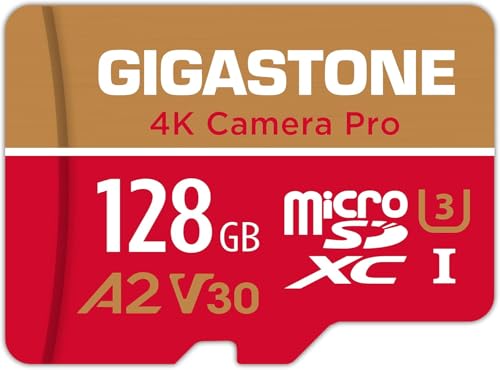
Drones expose cards to vibrations, temperature swings, and moisture. Look for cards that are waterproof, shockproof, temperature-proof, and X-ray-proof. SanDisk Extreme models are certified against these elements, while Gigastone offers a five-year warranty with free data recovery. A rugged card protects your footage even if the drone takes a hard landing.
App Performance and Compatibility
Some cards include an A1 or A2 rating for faster app loading on Android devices if you use the Mavic app for quick edits. All the cards listed here are compatible with DJI Mavic drones, but always format the card in the drone before first use. If you need broader compatibility info, check our best SD cards for action cameras roundup.
Final Thoughts
After assessing speed, capacity, and durability, our top recommendation for most Mavic pilots is the SanDisk 128GB Extreme microSD UHS I Card for 4K, which offers a proven balance of fast write speeds and ruggedness at a reasonable price. For those who need maximum capacity for long projects or 5K recording, the SanDisk 512GB Extreme microSD UHS-I Card provides ample space and blistering read/write performance. Whichever you choose, a quality microSD card ensures your aerial memories are safe and smooth.
Frequently Asked Questions
What SD card do I need for DJI Mavic?
You need a microSD card with UHS Speed Class 3 (U3) and Video Speed Class 30 (V30) or higher. Cards like the SanDisk Extreme or Gigastone 128GB are certified for 4K recording and work with all Mavic models. For the latest recommendations, check our best SD cards for GoPro guide, as many of the same specs apply to drones.
Is 128GB enough for DJI Mavic?
Yes, 128GB is enough for most pilots. It stores roughly 90 minutes of 4K footage at standard bitrates. If you shoot long flights or raw photos, consider 256GB or 512GB. The SanDisk 512GB Extreme is a solid choice for heavy users in 2026.
Can I use a regular SD card in my DJI Mavic?
No, DJI Mavic drones require microSD cards, not full-size SD cards. Ensure you buy a microSDXC or microSDHC card with U3/V30 ratings. The Silicon Power 128GB microSD card is a budget-friendly option that meets these specs.
How do I format a microSD card for DJI Mavic?
Insert the card into your drone, power it on, and navigate to the settings menu. Select “Format” to prepare the card for use. Always format in the drone, not on a computer, to ensure optimal file system alignment. This applies to all cards in our list.