

🔥 TV Black Friday Deals 2026: picks worth watching →
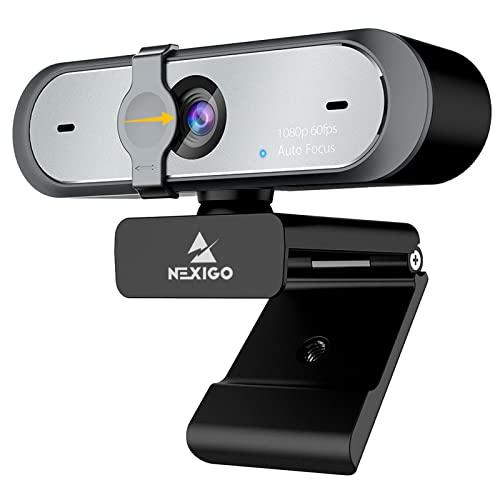
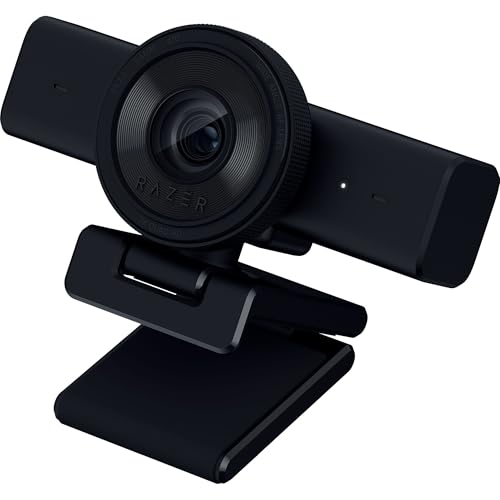
Setting up Open Broadcaster Software (OBS) for your live streams or recordings requires a webcam that delivers smooth, clear video without hiccups. Whether you are a gamer, a remote worker, or a content creator, the camera you choose directly impacts your audience’s experience. In this guide, we assess two top contenders: the NexiGo N660P 1080P 60FPS Webcam with Software and the Razer Kiyo V2 X Webcam for Streaming and Meetings. Both are optimized for OBS and cater to different needs, from budget-conscious streamers to those seeking higher resolution. For more options, check out our roundup of best webcams for twitch streaming.


Buying Guide: What to Look for in a Webcam for OBS
Video Resolution and Frame Rate
For OBS streaming, a resolution of at least 1080p at 60 frames per second (fps) is the sweet spot. It provides a sharp, fluid image that keeps viewers engaged without overloading your upload bandwidth. The NexiGo N660P delivers 1080p at 60fps, while the Razer Kiyo V2 X steps up to 1440p at 60fps, offering even more clarity for high-end streams. If you are aiming for professional-quality output, prioritize 60fps over lower frame rates. For a deeper dive, see our best streaming webcams.
Autofocus Performance
Fast, accurate autofocus keeps you in sharp focus whether you lean in for a close-up or move around during a stream. The Razer Kiyo V2 X features quick, precise autofocus that tracks movements seamlessly. The NexiGo N660P also uses autofocus, but its speed is slightly slower in rapid motion. For most OBS use cases, both perform well, but if you frequently change positions, the Razer offers an edge.
Low-Light Capability
Streaming often happens in less-than-ideal lighting. A webcam that handles dim environments without excessive noise is crucial. Both models employ automatic white balance and exposure adjustments. The NexiGo N660P uses software control to brighten dark scenes, while the Razer Kiyo V2 X relies on a larger sensor for better low-light clarity. For guidance on improving your lighting setup, visit our best webcams for live streaming.
Audio Quality and Microphone
Clear audio matters as much as video. The NexiGo N660P comes with dual stereo noise-canceling microphones that filter background noise, making it ideal for group calls or streams in noisy rooms. The Razer Kiyo V2 X includes a built-in mic that captures speech clearly but lacks noise cancellation. If you stream without a dedicated microphone, the NexiGo’s dual mics are a strong advantage. However, most OBS users pair their webcam with an external mic anyway.
Final Thoughts
Both webcams are excellent choices for OBS, but they target different priorities. The NexiGo N660P 1080P 60FPS Webcam with Software shines as a versatile, budget-friendly option with dual noise-canceling mics and software controls, perfect for streamers who need a solid all-rounder. Meanwhile, the Razer Kiyo V2 X Webcam for Streaming and Meetings delivers superior 1440p resolution and faster autofocus, catering to creators who demand the highest video quality for their OBS streams. Whichever you choose, both will elevate your streaming game.
Related Guides
Frequently Asked Questions
Do I need a 60fps webcam for OBS?
While 30fps is acceptable for basic video calls, 60fps provides noticeably smoother motion for gaming and live interactions. If your internet upload speed supports it, a 60fps webcam significantly improves viewer experience in OBS.
Can I use a webcam without a ring light for OBS?
Yes, but results depend on your environment. Both the NexiGo N660P and Razer Kiyo V2 X handle moderate low light well due to their automatic adjustments. However, adding a ring light or softbox can drastically improve image quality. For more tips, check our best webcams for YouTube in 2026.
What resolution is best for OBS streaming?
1080p at 60fps is the standard for most non-partnered Twitch or YouTube streams. Higher resolutions like 1440p (offered by the Razer Kiyo V2 X) require more bandwidth and a stronger PC but deliver exceptional clarity for larger audiences or recorded content.
How do I set up a webcam in OBS?
Simply plug in your webcam, open OBS, add a new Video Capture Device source, and select your webcam from the dropdown. Both the NexiGo and Razer models are plug-and-play on Windows and Mac, requiring no additional drivers for basic use.


