

🔥 TV Black Friday Deals 2026: picks worth watching →
You’ve just sat down at your desk, coffee in hand, ready to power through the day. But your laptop is a tangle of cables, you’re down to one external monitor, and your mouse keeps dropping its connection. We’ve all been there. This guide cuts through the noise to help you choose the best business laptops with docking station setups for 2026, covering compact hubs for on-the-go pros and full desktop replacement docks for power users.
We evaluated the top options from Anker and Plugable, focusing on display support, charging power, and port selection. Whether you’re a financial analyst needing triple 4K screens or a hybrid worker wanting a clean single-cable setup, we’ve got you covered. For more on pairing your dock with the right laptop, check out our roundup of the best thin business laptops for 2026.

Pros
- Dual HDMI ports support 4K resolution, perfect for multi-monitor setups.
- 85W Power Delivery pass-through charging keeps your laptop charged without extra adapters.
- Includes Ethernet, USB-A, and SD card slots for versatile connectivity.
- Compact and portable design fits easily into a laptop bag.
- Anker's 18-month warranty and reliable build quality.
Cons
- On macOS, both external monitors display identical content (mirror only), not extend.
- No USB-C data port; only one USB-C port is used for PD charging input.
- Not compatible with Linux systems.
The Anker PowerExpand 8-in-1 USB-C Hub is a versatile docking station designed to add essential ports to modern laptops with USB-C connectivity. It's an excellent choice for professionals and students who need to connect multiple monitors, Ethernet, and SD cards without carrying a bulky dock. The hub supports Windows 10/11 and ChromeOS, while Mac users should note the dual monitor limitation.
Standout features include dual HDMI ports that deliver 4K@60Hz to a single display or 4K@30Hz to two displays. This allows for efficient multitasking and a more immersive viewing experience. The 85W Power Delivery pass-through charging is a game-changer, as it keeps your laptop powered during heavy use without needing a separate charger. The integrated Gigabit Ethernet port ensures stable internet connectivity, a must for video calls and large file transfers.
Design-wise, the hub is compact and lightweight, measuring just 4.6 x 2.0 x 0.7 inches and weighing 0.2 pounds. Its gray finish and minimalist look blend well with most laptops. The ports are well-spaced, reducing interference when connecting multiple cables. Anker's build quality is evident, and the included 18-month warranty adds confidence.
One drawback is that on macOS, the dual HDMI outputs only mirror the display, not extend it, which limits multi-monitor functionality for Mac users. Additionally, there is no USB-C data port, so you lose one USB-C port for charging. The hub is also not compatible with Linux, which may be a dealbreaker for some users.
Overall, the Anker PowerExpand 8-in-1 USB-C Hub offers excellent value for Windows users seeking a portable, affordable docking solution. Its dual 4K display support, fast charging, and reliable connectivity make it a strong contender in the compact hub market. For Mac users, consider if mirroring meets your needs. If not, look for a hub that supports extended displays on macOS.



Buying Guide: Choosing the Right Docking Station for Your Business Laptop
Not all docking stations are created equal, and the right one depends on your specific laptop and work style. Here are the key factors we recommend considering before you make a purchase.
Display Output and Resolution
The number of external monitors you can run is a primary differentiator. Some docks support a single 4K display, while others can drive two or even three 4K monitors simultaneously. Check your laptop’s video output capabilities, like DisplayPort Alt Mode or Thunderbolt, to ensure the dock can deliver the resolution and refresh rate you need.
For professionals who need to see multiple spreadsheets or code windows at once, a triple monitor setup is a game-changer. If you’re using a Mac, remember that some docks may mirror displays instead of extending them, so verify compatibility with your operating system.
Power Delivery and Charging
A docking station should do more than just connect your peripherals; it should also keep your laptop charged. Look for USB-C Power Delivery (PD) that matches or exceeds your laptop’s charging requirements. A dock with 85W to 100W of PD will handle most modern business laptops, including larger models.
Some docks also offer additional charging for your phone or tablet, which is a nice bonus. Always check the wattage of the included power adapter, as some docks require a separate purchase to reach their maximum charging capability.
Port Selection and Data Transfer Speeds
Consider the types of devices you connect daily. Do you need multiple USB-A ports for a mouse and keyboard? What about an Ethernet port for a stable wired network connection? SD card readers are essential for photographers and videographers. The more ports, the more versatile the dock.
Data transfer speed is another critical factor. Look for USB 3.2 Gen 2 or Thunderbolt connections, which offer up to 10Gbps or higher, allowing you to move large files quickly. This is especially important if you work with video editing or large datasets. For a deeper dive into portable options, see our guide on the best ultraportable business laptops.
Build Quality and Brand Reliability
A docking station is an investment, so you want one that will last. Look for a solid metal or high-quality plastic construction that can handle daily plugging and unplugging. A compact, vertical design can save valuable desk space.
Brands like Anker and Plugable have built strong reputations for reliability and customer support. Choosing a dock from a trusted brand often means better driver updates and a longer warranty. If you’re also in the market for a new laptop, you might find our list of best ultrabook laptops for business helpful.
Final Thoughts
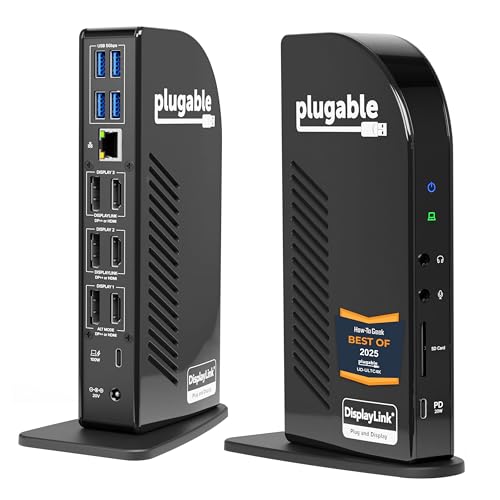
Choosing the right docking station ultimately comes down to matching the hardware to your specific workflow and laptop capabilities. For most professionals, the Anker Laptop Docking Station offers an excellent balance of power, ports, and triple display support, making it a versatile all-rounder for a standard office setup. However, if you require the absolute maximum in display resolution and a robust 100W power delivery for a demanding workstation, the Plugable 13-in-1 USB C Docking Station 4K Triple is the clear winner, especially for IT professionals and power users. Both are outstanding choices, so weigh your needs and pick the one that fits your daily routine.
Frequently Asked Questions
Will a docking station work with any laptop?
Most modern docking stations with USB-C or Thunderbolt connections are compatible with a wide range of laptops, but there are exceptions. You’ll need to check that your laptop supports USB-C with DisplayPort Alt Mode or Power Delivery, as some budget ultrabooks may have limited capabilities. Always review the dock’s compatibility list before purchasing.
Can I use a docking station with a MacBook?
Yes, many docking stations work with MacBooks, but you may encounter limitations with display support. On macOS, some docks are limited to mirroring your desktop across multiple external monitors rather than extending them. For the best experience, look for docks that explicitly state full macOS compatibility with extended display support.
What is the difference between a USB-C hub and a docking station?
A USB-C hub is typically a compact, bus-powered device that adds a few ports, while a docking station is a larger, more powerful unit that often includes its own power supply and can support multiple high-resolution displays. Docking stations usually offer more ports, higher power delivery, and better performance for demanding tasks. For many business users, a full docking station is the better investment.
How many monitors can I connect with a docking station?
The number of monitors you can connect depends on the dock’s specifications and your laptop’s graphics capabilities. Entry-level docks typically support one or two 4K displays, while premium models can drive three or more. Check the maximum supported resolution and refresh rate for each display output to ensure it meets your needs. For more insights on maximizing your laptop’s potential, visit our laptops category page.



