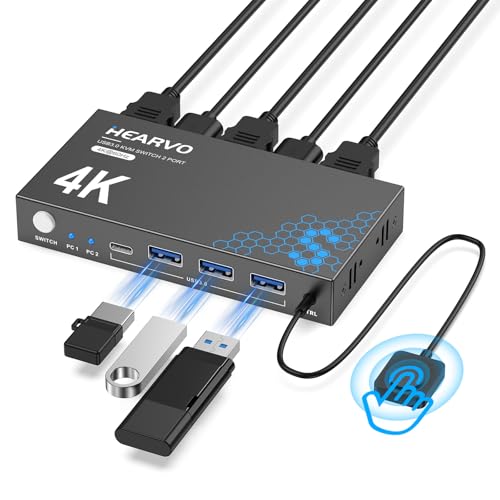
Juggling between a work laptop and a personal desktop while using two monitors often leads to cable chaos. Every time you need to switch computers, you might find yourself unplugging and replugging keyboards, mice, and display cables. This not only wastes precious minutes but also disrupts your workflow. A high-quality KVM switch designed for dual monitors eliminates this frustration, allowing you to control two or more computers with a single set of peripherals. Whether you are a remote worker, a content creator, or a gamer, this guide will help you find the best KVM switch for dual monitors to create a cleaner, more efficient desk setup.
We have reviewed six leading models from trusted brands like AV Access, UGREEN, and RubiPro. Our analysis focuses on real-world usability, video performance, and connectivity options. For more advice on streamlining your home, check out our guide to the best microfiber cleaning cloths for a streak free shine to keep your monitor screens spotless.


Buying Guide: What to Look for in a KVM Switch for Dual Monitors
Video Resolution and Refresh Rate Support
Your monitor’s resolution and refresh rate matter. If you use 4K displays, look for a KVM switch that supports 4K@60Hz or higher. Some models now offer 8K@60Hz or 4K@144Hz, which is excellent for gamers or video editors who need smooth motion. Always check that the switch supports the same refresh rate as your monitors to avoid visual lag or stuttering.
Connection Type and Port Count
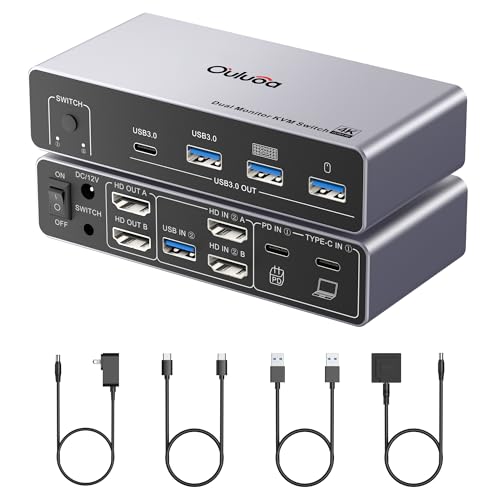
Most KVM switches use HDMI or DisplayPort. HDMI is common for home setups, while DisplayPort is often preferred for high-end gaming or professional monitors. Ensure each of your computers has the required video outputs (two ports per computer for dual displays). Also consider the number of USB ports for your peripherals, four USB 3.0 ports are standard for sharing a keyboard, mouse, webcam, and storage drive.
If you use a laptop as one of your sources, a USB-C KVM switch dock can simplify connectivity with a single cable. For tips on keeping your workstation organized, see our guide to the best mops for small apartments if space is a concern in your home office.
Switching Methods and Ease of Use
Most KVM switches offer a physical button on the device or a wired remote controller for quick switching. Some support hotkeys, but many do not. A desktop controller lets you hide the main unit and keep your desk clean. Plug-and-play operation without software is ideal for hassle-free setup.
Power Supply and Compatibility
External power adapters are essential for stable USB device performance, especially if you use high-power peripherals like external hard drives. Check compatibility with your operating systems, Windows, macOS, and Linux are commonly supported. Also verify if your computer supports MST (multi-stream transport) for extended dual displays, as some macOS systems only offer mirrored mode.
For more ways to enhance your workspace, explore our list of best wrist wraps for pain relief to reduce strain during long work hours.
Final Thoughts
After evaluating six models, we recommend the AV Access KVM Switch Dock 2 Monitors 2 Laptops for professionals who need an all-in-one docking solution with dual USB-C inputs and fast switching, perfect for managing a laptop and a desktop. For budget-conscious users who prioritize high refresh rates, the 4K@144Hz KVM Switch 2 Monitors 2 Computers Display offers excellent value with DisplayPort support and a wired remote. Whichever you choose, our reviewed options will help you achieve a tidy, efficient dual-monitor workspace.
Frequently Asked Questions
Will a KVM switch work with two monitors of different sizes?
Yes, as long as both monitors support the same connection type (HDMI or DisplayPort) and the KVM switch can handle the resolution of each. You can mix different monitor sizes and resolutions, but the switch will output the same source to both screens.
Do I need a powered KVM switch for dual monitors?
It is strongly recommended. A powered KVM switch with an external adapter ensures stable USB device operation, especially for high-draw peripherals like webcams or external drives. Unpowered switches may not provide enough current, leading to connectivity issues.
Can I use a KVM switch with a Mac and a PC?
Most KVM switches support both Windows and macOS. However, note that many Mac laptops (especially those with M-series chips) only support mirrored mode when using a USB-C KVM switch that uses SST (single-stream transport). Check the product specifications for macOS compatibility before buying in 2026.
What cables do I need for a dual-monitor KVM switch?
You will need two video cables (HDMI or DisplayPort) per computer, plus one USB cable per computer to connect to the KVM switch. Some switches include these cables, but many do not, so check the package contents. Ensure your computer has two video outputs to support dual monitors.
For tips on maintaining a tidy workspace, see our guide to the best reusable paper towels for easy cleanup.