

🔥 TV Black Friday Deals 2026: picks worth watching →
If you own a Chromebook, you have likely run into the storage crunch. Many models ship with just 32GB or 64GB of eMMC flash, which fills up fast with apps, downloads, and offline files. The simplest fix is adding an SD card. Most Chromebooks have a microSD slot (or a full-size SD slot with an adapter), and a fast card can handle apps, media, and documents without lag. In this guide, we have reviewed six top options from SanDisk and uni that are ideal for Chromebooks, covering everything from compact microSD cards to a versatile USB-C card reader. Whether you need massive capacity for a media library or a budget-friendly boost for everyday work, we have you covered.
For more context on expanding tablet storage, check out our roundup of top SD cards for Samsung tablets, which shares many of the same considerations.



Buying Guide: What to Look for in an SD Card for Your Chromebook
Capacity: How Much Space Do You Really Need?
Chromebooks can support cards up to 2TB (theoretical), but most users find 128GB to 256GB a sweet spot. A 256GB SanDisk Ultra microSD card can store thousands of photos, hours of Full HD video, and dozens of apps. If you primarily use cloud storage, a 64GB or 128GB card may suffice. For heavy media consumers, the 256GB option is a solid investment. Remember that Chromebooks treat SD cards as external storage, so you can also use them to offload files from your internal drive.
For a deeper look at capacity options, see our guide on best microSD cards for tablets.
Speed: Read and Write Performance Matters
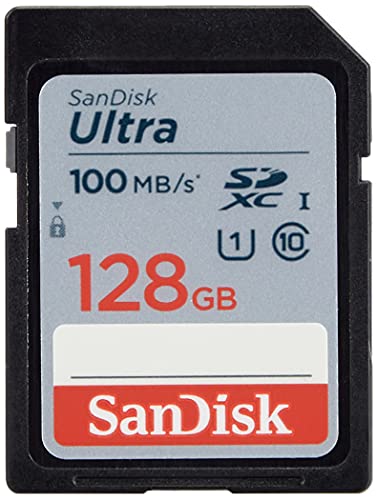
Speed is crucial for app loading and video playback. Look for cards with read speeds of at least 100 MB/s. The SanDisk Ultra microSD cards reach up to 150 MB/s, while the full-size SD variants offer 100 to 140 MB/s. For Chromebooks, a UHS Speed Class 1 (U1) or Class 10 rating is sufficient for Full HD video and everyday tasks. If you plan to run apps from the card, an A1 or A2 rating ensures faster random read/write performance. The SanDisk 128GB Ultra microSD (SDSQUAB) is A1-rated, making it a great choice for app storage.
Form Factor: microSD vs. Full-Size SD
Most modern Chromebooks have a microSD slot. If yours has a full-size SD slot, you can still use microSD cards with an adapter (most come included). The SanDisk 256GB Ultra microSD card includes an SD adapter, giving you flexibility. For Chromebooks without any SD slot, a USB-C card reader like the uni SD Card Reader is a lifesaver. It supports both SD and microSD cards simultaneously and transfers data at up to 5 Gbps.
Our best SD cards for tablets article covers similar form factor considerations.
Durability and Warranty: Peace of Mind
SD cards can fail, especially if used heavily. SanDisk backs its Ultra cards with a 10-year limited warranty, which is excellent. The cards are also resistant to shock, water, and x-rays, making them reliable for on-the-go use. The uni card reader comes with an 18-month warranty and is built with a sturdy aluminum shell. Investing in a reputable brand ensures your data stays safe.
Final Thoughts
After evaluating each product, we recommend two standout options for most Chromebook users. If you need maximum capacity and the fastest speeds, the SANDISK 256GB Ultra microSD Card + Adapter is a powerhouse that can handle apps, media, and backups with ease. For a more budget-friendly yet still very capable choice, the SanDisk 128GB Ultra microSDXC UHS-I Memory Card offers A1 performance and reliable storage at a lower price point. Both cards are backed by long warranties and deliver the read speeds your Chromebook needs. Whichever you choose, expanding your storage has never been simpler.
Frequently Asked Questions
Can I use a microSD card in any Chromebook?
Most Chromebooks have a microSD slot, but some older or budget models may only have a full-size SD slot. In that case, use a microSD card with an SD adapter (included with many cards). For Chromebooks without any SD slot, a USB-C card reader like the uni model works perfectly.
What speed class do I need for running apps from the SD card?
For app storage, look for an A1 or A2 rating. The SanDisk Ultra microSD cards are A1-rated, which provides faster random read/write performance for app loading. A UHS Speed Class 1 (U1) is also recommended for smooth video playback and general use.
How do I format an SD card for a Chromebook?
Chromebooks can read FAT32, exFAT, and NTFS. Most SD cards come preformatted in FAT32. To format, insert the card, open the Files app, right-click the card, and select “Format device.” Choose exFAT if you plan to store files larger than 4GB. Note that formatting erases all data on the card.
Will an SD card slow down my Chromebook?
Using a slow card may introduce lag when loading apps or media. However, a high-speed card (100 MB/s or faster) with an A1 rating will perform almost as well as internal storage for most tasks. Avoid bargain cards with low read/write speeds. For more on speed considerations, see our best microSD cards for Samsung phones guide.


