🔥 TV Black Friday Deals 2026: picks worth watching →
Imagine unboxing a new laptop, only to spend hours wrestling with driver issues and incompatible hardware just to get your favorite Linux distribution running smoothly. If you are a developer, a network engineer, or a privacy-conscious user, you know the frustration of fighting with a system that was never designed with open-source software in mind. This guide is your shortcut to a hassle-free Ubuntu experience, covering both purpose-built laptops and essential add-ons that make the transition seamless. We have evaluated a range of options, from rugged field-ready machines to high-performance workstations, ensuring there is a perfect match for your specific workflow and budget.
Our goal is to simplify your decision-making process by focusing on what truly matters when running Ubuntu: hardware compatibility, build quality, and upgradeability. We will also highlight a few clever peripherals that can enhance your setup, such as bootable USB drives and high-speed WiFi adapters that work out of the box with Linux. Whether you are a seasoned Linux veteran or a curious newcomer, this article will help you build a reliable and efficient Ubuntu-powered workstation. If you are also exploring other Linux distributions, be sure to check out our top picks for Kali Linux for more specialized recommendations.



Buying Guide
Processor and Performance
When selecting a laptop for Ubuntu, the processor is the heart of your system, dictating how smoothly your applications run. For everyday tasks like web browsing, document editing, and light coding, a modern Intel Core i5 or AMD Ryzen 5 will provide more than enough power. However, if you are a developer compiling large codebases or a data analyst running complex simulations, consider stepping up to a high-end Intel Xeon or Core i7 processor, like the one found in the HP ZBook Fury 17 G8, which ensures zero lag even under heavy multi-threaded workloads.
Another critical factor is the kernel version your chosen distribution supports. Ubuntu’s latest LTS releases include the newest hardware enablement stack, which provides better support for recent CPUs and integrated graphics. If you plan to use a very new processor, opting for a laptop that is certified for Ubuntu or has a well-supported chipset will save you from potential headaches. For more advice on what to look for in a daily driver, our guide to everyday laptops offers additional insights that apply equally to Linux users.
Memory and Storage
RAM and storage are the lifeblood of any Linux system, especially when you are running multiple applications or virtual machines. For a smooth Ubuntu experience, we recommend a minimum of 8GB of RAM, but 16GB or more is ideal if you are a power user or run containers. The HP ZBook Fury’s 64GB of DDR4 memory is overkill for most, but it future-proofs your machine for years of demanding workloads, ensuring you never hit a memory ceiling.
For storage, an SSD is non-negotiable in 2026; it dramatically improves boot times and application loading. A 256GB SSD is a decent starting point, but if you store large media files or multiple operating systems, consider a 512GB or larger drive. The Panasonic Toughbook CF-31, with its 256GB SSD, is a solid choice for field work, while also offering the reliability of a rugged design. If you are unsure about how much storage you need, our best laptops for home use article covers various configurations that balance performance and value.
Hardware Compatibility and Linux Support
One of the biggest challenges with running Ubuntu is ensuring that all your hardware, from the WiFi card to the graphics chip, works without proprietary drivers. Look for laptops that are certified as “Ubuntu Ready” or have a strong community following, as these tend to have the best open-source driver support. Additionally, check for specific components like the BrosTrend AXE3000 Linux WiFi Adapter, which is designed to be plug-and-play with modern kernels, saving you from the agony of compiling drivers from source.
Another consideration is the boot process; some laptops have strict UEFI settings that require disabling Secure Boot to run Linux. While this is a simple BIOS change, it can be intimidating for beginners. That is why having a bootable USB drive like the Beamo Ubuntu Desktop 24.04.3 LTS or the EZITSOL 9-in-1 Linux USB drive is invaluable, as they allow you to test the live environment before committing to an installation. For more tips on selecting a Linux-friendly machine, you can also explore our recommendations for Windows laptops that often work well with Ubuntu.
Build Quality and Portability
Depending on where you plan to use your Ubuntu laptop, build quality can be just as important as internal specs. For field engineers and outdoor professionals, a rugged laptop like the Panasonic Toughbook CF-31 is built to withstand drops, water, and extreme temperatures, ensuring your data is safe no matter the environment. Its integrated handle and 1200-nit display make it a practical choice for on-the-go use in direct sunlight.
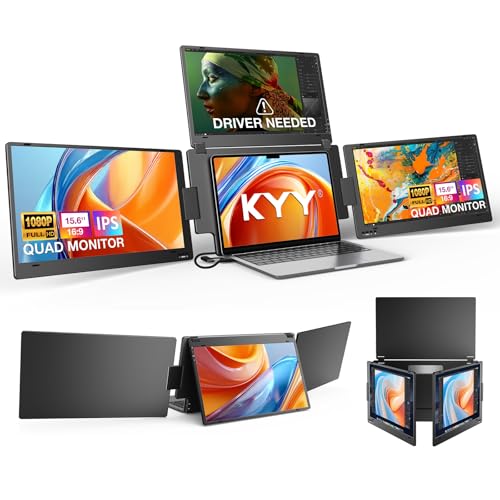
On the other hand, if you are mostly working from a desk, a large-screen workstation like the HP ZBook Fury 17 G8 offers superior ergonomics and expandability, though it comes with a significant weight penalty. For those who want to boost productivity at home or in the office, consider pairing your laptop with a KYY Triple Screen Laptop Monitor Extender, which transforms your portable workstation into a multi-display powerhouse. If portability is your priority, our top home laptop picks include lighter alternatives that still handle Ubuntu with ease.
Final Thoughts
Choosing the right hardware for Ubuntu ultimately comes down to understanding your specific needs, whether that is raw processing power for development or rugged durability for fieldwork. For most users, we recommend starting with the HP ZBook Fury 17 G8 if you need a high-performance workstation that can handle anything you throw at it, while the Panasonic Toughbook CF-31 is unbeatable for those who require a resilient machine for outdoor or industrial environments. Pair your choice with a reliable bootable USB drive and a compatible WiFi adapter, and you will have a seamless Ubuntu experience for years to come.
Related Guides
Frequently Asked Questions
Can I run Ubuntu on any laptop?
While Ubuntu can run on most x86-64 architecture laptops, compatibility varies based on the hardware components. Laptops with Intel or AMD processors and standard graphics chips usually work out of the box, but some WiFi cards, touchpads, and GPUs may require additional drivers. It is always a good idea to try a live USB environment first to confirm everything works before installing.
How much RAM do I need for Ubuntu in 2026?
For basic tasks like web browsing and word processing, 8GB of RAM is sufficient for a smooth Ubuntu experience. However, if you are a developer running virtual machines, containers, or heavy applications, we recommend 16GB or more to avoid slowdowns. The HP ZBook Fury offers 64GB, which is overkill for most but ensures you never run out of memory.
What is the best way to install Ubuntu on a new laptop?
The easiest method is to use a bootable USB drive with the Ubuntu installer, which you can create using tools like Rufus or the official Startup Disk Creator. You can then boot from the USB, choose “Try Ubuntu” to evaluate the live environment, and then install it alongside or instead of your current operating system. For a pre-made solution, consider a multi-boot USB like the 64GB 16-in-1 Bootable USB Drive, which includes several Linux distributions for flexibility.
Does Ubuntu support WiFi 6E adapters?
Yes, but only if you are using a recent Linux kernel (version 5.18 or newer). The BrosTrend AXE3000 is a plug-and-play adapter that works with Ubuntu and other distributions on modern kernels, providing fast WiFi 6E speeds. If you have an older kernel, you may need to update your system or compile drivers manually, which can be tricky for beginners.