You’ve just joined your first video call, and the built-in laptop camera makes you look like a blurry shadow. Or maybe you’re starting a new remote job, launching a small YouTube channel, or simply want to look sharp for family Zoom gatherings. Whatever your reason, buying your first external webcam is a small upgrade that transforms how you appear online. But with dozens of models claiming 4K, noise cancellation, and auto light correction, where do you start?
We’ve reviewed the market and picked nine webcams that are perfect for first-time buyers. Each one offers plug-and-play simplicity, a privacy cover, and solid video quality without overwhelming you with complex settings. Whether you need a budget-friendly option or something with 4K clarity, this guide will help you choose confidently. If you want to explore more options for daily use, check out our best webcams for daily use roundup.



Buying Guide: What to Look for in Your First Webcam
Resolution: 1080p or 4K?
For most first-time buyers, Full HD 1080p is more than enough. It delivers sharp, clear video for video calls, online classes, and streaming. If you plan to record professional content or want extra detail for cropping, a 4K webcam gives you flexibility. However, 4K requires more bandwidth and processing power, so ensure your computer can handle it. Many affordable 1080p webcams now include auto light correction, making them look nearly as good as 4K in normal lighting.
If you’re a Logitech fan, read our best Logitech webcams article for models that balance price and performance.
Built-in Microphone Quality
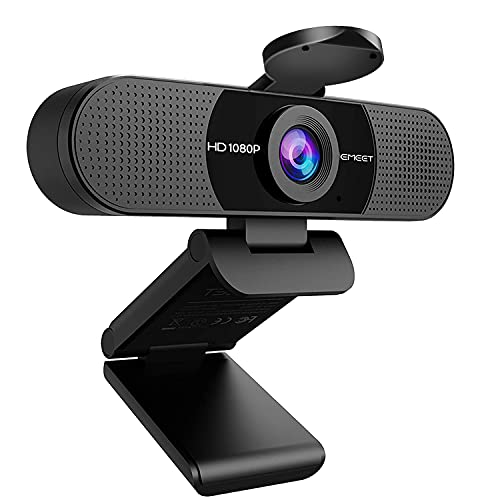
You don’t want to buy a separate mic right away. Look for a webcam with noise-canceling microphones that filter out keyboard clicks and background chatter. Dual omnidirectional mics, like those on the EMEET C960, capture your voice clearly even from a few feet away. For quiet home offices, a single noise-reducing mic is sufficient. Always test the audio in your conferencing app before a big meeting.
Privacy Cover and Mounting Options
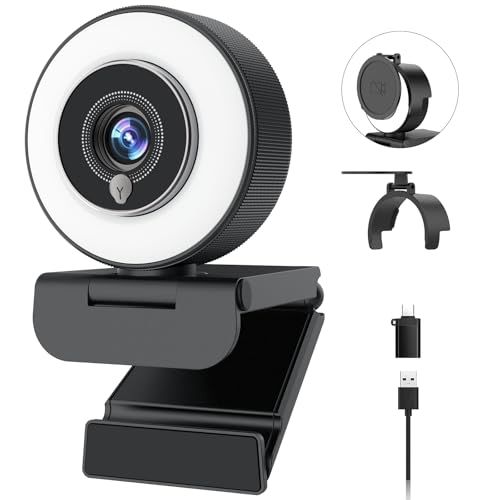
A physical privacy cover is non-negotiable for first-time users. It lets you slide a shutter over the lens when not in use, giving you peace of mind. Most webcams come with a clip that fits laptops and monitors, plus a 360-degree swivel for easy angle adjustments. Some also support tripod mounting, which is handy if you want to position the camera away from your screen. For more tips on privacy, see our top Logitech webcams for Zoom guide.
Plug-and-Play Compatibility
No one wants to install drivers or fiddle with settings. The best webcams for first-time buyers work right out of the box. Simply plug into a USB port, and your computer recognizes it instantly. Make sure the webcam supports your operating system (Windows, macOS, ChromeOS) and works with platforms like Zoom, Teams, Google Meet, and Skype. If you use a Mac, check our best logitech webcams for mac page for compatible picks.
Final Thoughts
After reviewing these nine webcams, we believe the AOC 4K Webcam for PC, Streaming Computer Camera offers the best value for first-time buyers who want future-proof 4K quality with a simple plug-and-play setup, while the Gohero Full HD 1080P Video Webcam is an unbeatable budget choice that still delivers crisp video and a noise-canceling mic. Both include privacy covers and work seamlessly with all major platforms. No matter which you choose, you’ll step into your next video call looking confident and professional.
Frequently Asked Questions
Do I need a 4K webcam as a first-time buyer?
Not necessarily. A 1080p webcam is sufficient for most video calls and streaming in 2026. 4K is beneficial if you plan to record high-resolution content or frequently crop your video. However, 4K webcams like the AOC 4K model are now affordable enough to consider if your computer can handle the higher resolution.
Can I use a webcam with a Chromebook?
Yes, many webcams are Chromebook-compatible. The HP 320 FHD Webcam is explicitly optimized for Chrome OS, and most plug-and-play USB webcams work without additional drivers. Just check the product description for Chrome OS support before buying.
How do I clean my webcam lens?
Use a microfiber cloth slightly dampened with lens cleaning solution or distilled water. Gently wipe the lens in a circular motion. Avoid using paper towels or harsh chemicals, as they can scratch the coating. Regular cleaning keeps your video sharp.
What is the difference between autofocus and fixed focus?
Autofocus (like PDAF on the Acer 4K Webcam) automatically adjusts to keep you sharp if you move closer or farther from the camera. Fixed focus is set to a specific distance (usually 2 to 3 feet) and keeps everything at that range in focus. For first-time buyers, fixed focus is simpler and works well for typical desk setups. If you move around during calls, autofocus is worth the extra cost.