
🔥 TV Black Friday Deals 2026: picks worth watching →
If you spend hours flipping through dense PDFs for work, study, or leisure, you already know the frustration of a poor reading experience. Glare, eye strain, slow page turns, and limited note-taking options can turn a simple document into a nightmare. But the right tablet can transform how you interact with PDFs: you can annotate freely, search text, organize files, and read comfortably for hours. This guide focuses specifically on the best tablets for PDF reading in 2026 evaluating devices that prioritize display quality, stylus support, and document workflow. Whether you need a dedicated paper-like digital notebook or a versatile Android tablet, we have you covered. For a broader look at tablet categories, visit our Tablets hub.



Buying Guide: What to Look for in a PDF Reading Tablet
Display Technology and Eye Comfort
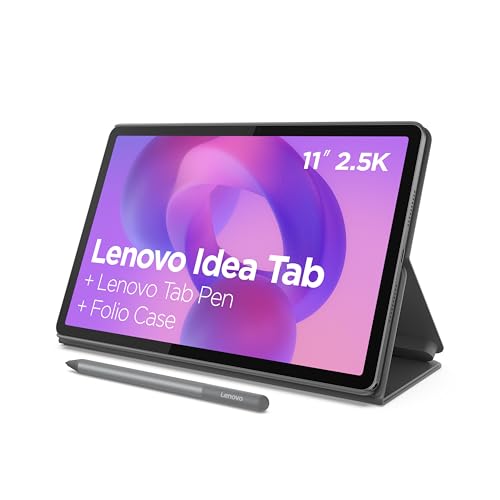
For PDF reading, the display is everything. Traditional LCD or OLED screens can cause eye strain after long sessions, especially in low light. E Ink displays like those on the reMarkable Paper Pro and BOOX Go Color 7 mimic paper by reflecting ambient light, which reduces glare and fatigue. If you read in bed or on the go, look for a front-lit display with adjustable warmth. The Lenovo Idea Tab uses an IPS LCD with TÜV Rheinland low blue light certification, which is a good compromise for those who also watch videos. If eye comfort is your top priority, an E Ink tablet is ideal.
Stylus Support and Note-Taking
Being able to highlight, annotate, and write directly on PDFs is a game changer. The reMarkable Paper Pro comes with the Marker Plus (with built-in eraser) and delivers an unmatched paper-like friction. The BOOX Go Color 7 supports active styluses (sold separately) and works with Android apps like OneNote and Evernote. The Lenovo Idea Tab includes a Tab Pen that enables circle-to-search and handwritten notes via Lenovo AI Note. If you annotate heavily, consider whether the stylus is included and how natural the writing feels.
File Compatibility and Organization
A good PDF tablet should handle a wide range of formats and offer robust file management. The reMarkable Paper Pro lets you organize notes with folders and tags, convert handwriting to text, and highlight PDFs. The BOOX Go Color 7 runs Android 13, so you can install third-party reading apps like Kindle, Kobo, and Adobe Acrobat, and it supports many document formats including PDF, EPUB, MOBI, and even CAJ. The Lenovo Idea Tab does the same with Android and preloaded apps like Squid and Nebo. For maximum flexibility, an Android tablet is hard to beat, similar to what you get with tablets for Minecraft in terms of app ecosystem.
Battery Life and Portability
Long battery life is crucial for readers who don’t want to charge daily. E Ink tablets excel here: the reMarkable Paper Pro can last for weeks on a single charge if you keep the front light off. The BOOX Go Color 7 also offers excellent endurance thanks to its E Ink screen. The Lenovo Idea Tab provides up to 12 hours of mixed use, which is respectable for an LCD tablet. Portability matters too, the BOOX weighs only 195 grams, making it the lightest for one-handed reading. The reMarkable is larger but still slim. If you travel often, weight and battery life become deciding factors.
Final Thoughts
After evaluating each device, the best choice depends on your daily habits. For serious readers who want a distraction-free, paper-like experience with superb annotation tools, the reMarkable Paper Pro with Marker Plus is our top recommendation. If you prefer a more versatile device that handles not only PDFs but also apps, web browsing, and light gaming, the Lenovo Idea Tab delivers exceptional value with a vivid screen and included stylus. Whichever you choose, investing in a quality PDF reading tablet will make your document workflow smoother and more enjoyable.
Frequently Asked Questions
Can I read PDFs on an E Ink tablet without eye strain?
Yes, that is one of the main advantages of E Ink technology. The reMarkable Paper Pro and BOOX Go Color 7 use E Ink screens that reflect light like paper, which drastically reduces eye strain compared to LCD or OLED screens. You can read for hours without headaches, even in direct sunlight.
Do I need a stylus to annotate PDFs on these tablets?
While you can tap and scroll with your finger, a stylus is essential for meaningful annotations like highlighting and handwriting notes. The reMarkable Paper Pro includes a Marker Plus, the Lenovo Idea Tab includes a Tab Pen, and the BOOX Go Color 7 supports an active stylus (sold separately). For a smooth annotation experience, choose a tablet that comes with a good stylus or budget for one separately.
Which tablet is best for reading academic PDFs with lots of graphs and images?
The Lenovo Idea Tab has a vivid 2.5K IPS display with 90Hz refresh rate, making it excellent for viewing color graphs and images. The reMarkable Paper Pro offers a color E Ink screen (Canvas Color) that shows charts in muted tones, ideal for those who prioritize eye comfort. The BOOX Go Color 7 also shows color at 150 ppi, but its screen is smaller (7 inches). For complex visuals, a larger LCD like the Lenovo is often best.
Can I use these tablets to read Kindle books or other eBooks?
Yes, all three can handle Kindle and other eBook formats. The reMarkable Paper Pro supports PDF and EPUB and lets you sideload books, while the BOOX Go Color 7 and Lenovo Idea Tab can install the Kindle app and many other readers. The BOOX even supports MOBI and AZW3 natively. For maximum app flexibility, Android-based tablets like the BOOX and Lenovo are best, similar to how tablets for emulation rely on third-party apps.