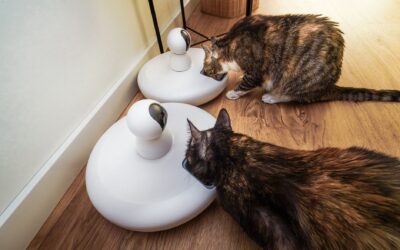
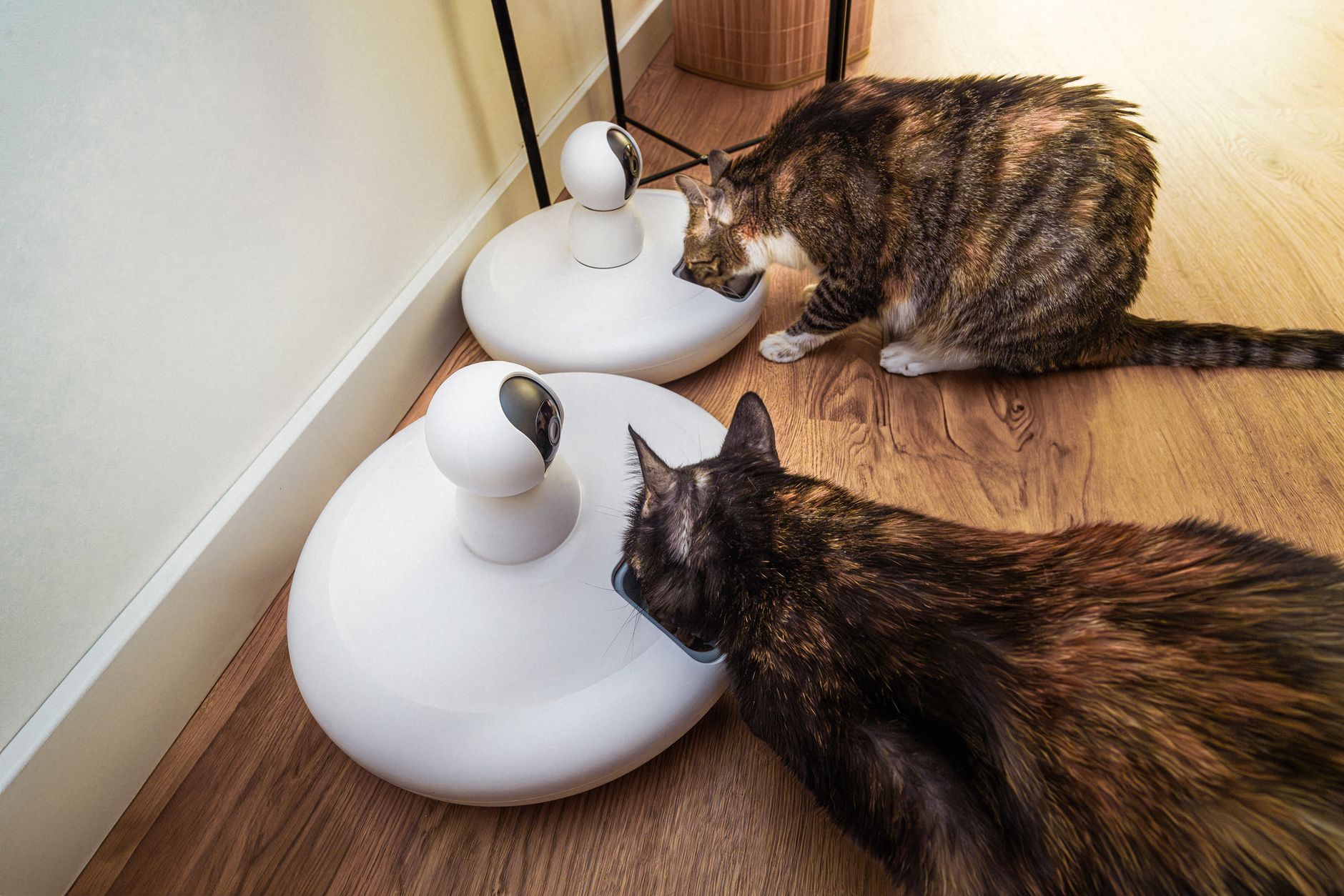
If your automatic pet feeder is not connecting to wifi, the issue is almost always a weak signal, incorrect network settings, or a temporary glitch in the feeder itself. Most smart feeders require a 2.4 GHz network and a stable connection within range of your router. Before you replace the device, a few simple checks can often restore the connection and get your pet’s feeding schedule back on track.
Weak WiFi Signal or Distance From Router
The most common reason an automatic pet feeder not connecting to wifi is simply being too far from your router. WiFi signals weaken as they pass through walls, floors, and appliances. If your feeder is in a basement, garage, or far corner of the house, the signal may be too weak for a stable connection.
Try moving the feeder closer to your router temporarily to see if it connects. If it does, you know distance is the problem. A WiFi extender or mesh system can help bridge the gap without moving the feeder permanently.
2.4 GHz vs. 5 GHz Network Compatibility
Most automatic pet feeders only support 2.4 GHz WiFi networks, not the faster 5 GHz band. Many modern routers broadcast both bands under one network name (SSID), which can confuse the feeder during setup. The feeder may attempt to connect to the 5 GHz band and fail.
Check your router’s settings to ensure you have a dedicated 2.4 GHz network or temporarily disable the 5 GHz band during setup. Once connected, you can re-enable 5 GHz for other devices. This is a frequent fix for an automatic pet feeder not connecting to wifi.
Incorrect WiFi Password or Network Name
A simple typo in the WiFi password or selecting the wrong network name can prevent connection. Passwords are case-sensitive, and hidden networks may not appear in the feeder’s scan. Double-check that you are entering the exact password for the correct network.
If your network is hidden (not broadcasting its SSID), you may need to temporarily make it visible during setup. Some feeders also require the network name to be entered manually, so verify there are no extra spaces or special characters.
Router Security Settings or MAC Filtering
Routers with advanced security features like MAC address filtering or WPA3 encryption can block new devices, including your feeder. If your router has a whitelist of allowed devices, the feeder’s MAC address must be added manually. Similarly, older feeders may not support the latest encryption standards.
Log into your router’s admin panel and check for MAC filtering or access control lists. Temporarily disable these features or add the feeder’s MAC address (usually found on the device label) to the allowed list. Switching to WPA2 encryption can also resolve compatibility issues.
Firmware or App Outdated on Feeder
Like any smart device, automatic pet feeders receive firmware updates that improve connectivity and fix bugs. An outdated feeder or companion app may struggle to connect to modern routers. Check the manufacturer’s app for available updates and install them.
If the feeder cannot connect at all, you may need to update the firmware via a USB cable or SD card if supported. Refer to the user manual for offline update instructions. Keeping both the app and feeder firmware current prevents many connectivity issues.
Interference From Other Devices
Other electronics can interfere with your feeder’s WiFi signal. Cordless phones, baby monitors, microwave ovens, and even neighboring WiFi networks on the same channel can cause interference. This is especially common in apartments or dense neighborhoods.
Try changing your router’s WiFi channel to a less congested one, or use a WiFi analyzer app to find the best channel. Moving the feeder away from large metal objects and other electronics can also reduce interference and improve connection stability.
How to Fix an Automatic Pet Feeder That Won’t Connect to WiFi
- Move the feeder closer to your router to test signal strength.
- Ensure the feeder connects to a 2.4 GHz network, not 5 GHz.
- Double-check the WiFi password and network name for typos.
- Disable MAC filtering or add the feeder’s MAC address to the router’s whitelist.
- Update the feeder’s firmware and the companion app.
- Change your router’s WiFi channel to reduce interference.
If you have tried all the steps above and your feeder still will not connect, the issue may be a hardware defect in the device itself.
Related Guides
- Automatic Pet Feeder Not Turning On
- Automatic Pet Feeder Keeps Jamming
- Automatic Cat Feeder Not Dispensing Food
- Best Automatic Pet Feeder with Camera for 2026
- PETLIBRO Automatic Wet Cat Feeder Review
Frequently Asked Questions
Can I use my automatic pet feeder without WiFi?
Yes, most automatic pet feeders have a manual feeding mode that works without WiFi. You can set scheduled feed times directly on the device, though you will lose remote control and notifications. Check your feeder’s manual for offline operation instructions.
Why does my pet feeder keep disconnecting from WiFi?
Intermittent disconnects usually point to signal instability or interference. The feeder may be at the edge of your router’s range, or other devices on the same channel are causing dropouts. A WiFi extender or changing the router channel often resolves this.
Do I need a 2.4 GHz network for my pet feeder?
Most smart pet feeders require a 2.4 GHz network because it offers better range and penetration through walls. The 5 GHz band is faster but has shorter range and may not be supported. Always check the feeder’s specifications before setup.
How do I reset my automatic pet feeder’s WiFi settings?
Typically, you hold a reset button on the feeder for 5-10 seconds until the WiFi indicator blinks. This clears saved networks and puts the feeder into pairing mode. Consult your user manual for the exact procedure, as it varies by model.
If your automatic pet feeder is not connecting to wifi, the solution is usually a simple network adjustment rather than a defective unit. Start with the most common fix, checking the 2.4 GHz band, and work through the list above.