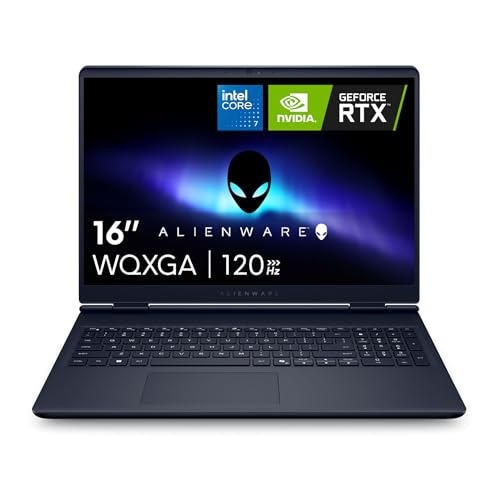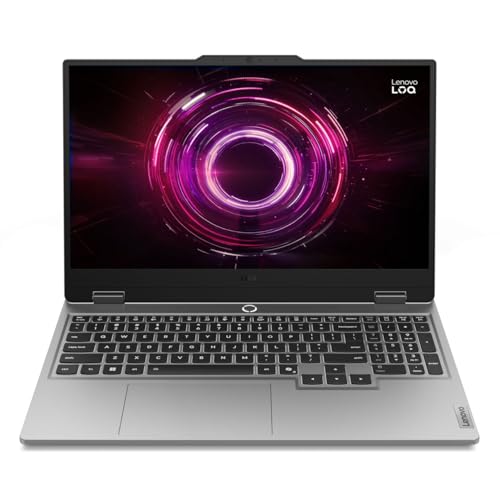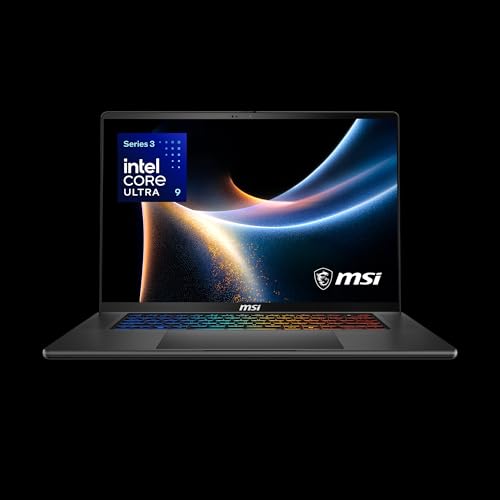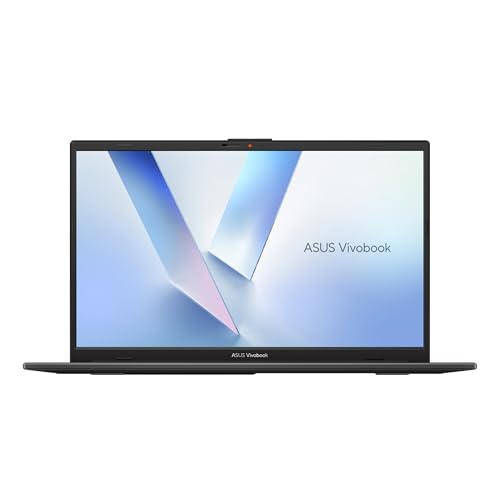
🔥 TV Black Friday Deals 2026: picks worth watching →
Imagine this: you’ve just finished designing a beautiful vinyl decal in Silhouette Studio, but as you hit ‘send to Cameo’, your laptop freezes, the design spins, and your creative flow is gone. We’ve all been there. That lag is exactly why choosing the right laptop for your Silhouette Cameo is just as important as the cutting machine itself. This guide is for crafters, small business owners, and hobbyists who need a reliable computer to run the software smoothly, manage large design files, and connect to their cutter without a hitch.
We’re focusing on the key components that make a laptop truly great for this task: a responsive processor, enough RAM to handle complex layers, and a crisp display so your colors are true. We’ve also considered connectivity, because a stable USB and Bluetooth connection is the backbone of any successful cut. Whether you’re a beginner or a seasoned pro, you’ll find the information you need to make an informed choice. For more on choosing a powerful machine, you might also be interested in our guide on laptops with dedicated graphics for creative work.


Buying Guide
Processor and RAM for Silhouette Studio
The heart of your laptop experience with Silhouette Cameo is the processor. A modern multi-core processor, like an Intel Core i5 or AMD Ryzen 5, will handle the software’s demands without breaking a sweat. This ensures that actions like rotating, resizing, and weeding designs feel instant, not laggy.
Equally important is RAM. For Silhouette Studio, 8GB is the sweet spot for most users, but 16GB is a wise investment if you often work with large, complex files or run multiple programs at once. More RAM means your computer won’t slow down when you’re juggling a design in Studio and a photo in another tab. For those who need even more power for other tasks, exploring laptops with 32GB of RAM might be worth considering.
Display Quality and Color Accuracy
Since you’ll be designing on screen, the display is your window to the final product. Look for a laptop with an IPS panel, which offers wide viewing angles and consistent colors. A Full HD (1920×1080) resolution is a must for seeing fine details in your designs.
Color accuracy is a game-changer for crafters. A display that covers a high percentage of the sRGB color space ensures that the colors you see on screen are the colors you’ll get when you print or cut. This is especially critical for print-and-cut projects where color matching is everything. For more portable options that don’t compromise on screen quality, you might want to check out top 13-inch laptops.
Connectivity and Ports
Your laptop needs to be able to talk to your Silhouette Cameo. Most modern laptops come with USB-A ports, which is the standard for connecting your cutting machine. A reliable USB 2.0 or 3.0 port is sufficient, but having a few options is always helpful.
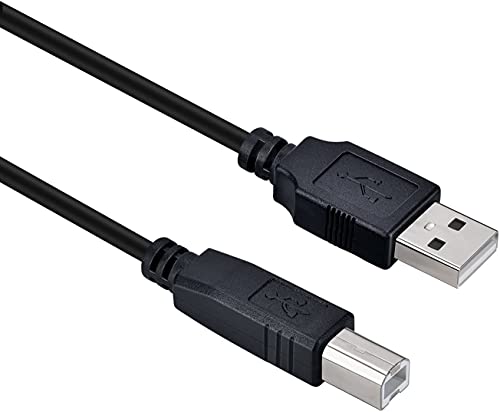
Bluetooth connectivity is also a fantastic feature for a clutter-free workspace. If you prefer a wireless setup, ensure your laptop supports Bluetooth. However, for the most stable and consistent connection, especially during long cuts, a wired USB connection is often recommended. A good quality cable, like the one from DIGITMON, can make all the difference in preventing disconnections.
Portability vs. Performance
Do you craft at a dedicated desk, or do you take your creativity on the go? If you’re always on the move, a lightweight and compact laptop is a blessing. A 13-inch or 14-inch model is easy to slip into a bag, and you can find many with powerful processors and long battery life.
If your laptop lives on your crafting desk, you have more freedom to choose a larger screen (15 inches or more) and more powerful components. The trade-off is weight and battery life, but the extra screen real estate can make designing a more immersive experience. For a balanced option, browse 14-inch laptops that offer a mix of portability and performance.
Final Thoughts
Choosing the right laptop for your Silhouette Cameo ultimately comes down to how and where you like to create, but we’ve found that a solid processor, ample RAM, and a good display are non-negotiable for a smooth experience.
Frequently Asked Questions
What are the minimum laptop requirements for Silhouette Studio?
For a smooth experience in 2026, we recommend at least an Intel Core i5 or AMD Ryzen 5 processor, 8GB of RAM, and a 256GB SSD. These specs will ensure the software runs without lag, even with complex designs. If you work with very large files, consider upgrading to 16GB of RAM.
Can I use a Chromebook with my Silhouette Cameo?
Generally, no. Silhouette Studio is a desktop application that requires Windows or macOS. While there is a web-based version, it has limited features and is not a full replacement for the desktop software. For full functionality, stick with a Windows or Mac laptop.
Is a touchscreen laptop necessary for Silhouette Cameo?
A touchscreen is not necessary, but it can be a nice bonus for some users. It allows you to interact with your designs more intuitively, like using your fingers to zoom and pan. However, the software is fully optimized for a mouse and keyboard, so you won’t miss out on any functionality without it.
How much RAM do I really need for a Silhouette Cameo?
For most users, 8GB of RAM is the minimum we recommend for a fluid experience. If you often work with large, multi-layer files or tend to have many browser tabs open while crafting, 16GB will provide a more comfortable buffer. This can prevent slowdowns and ensure your laptop remains responsive.