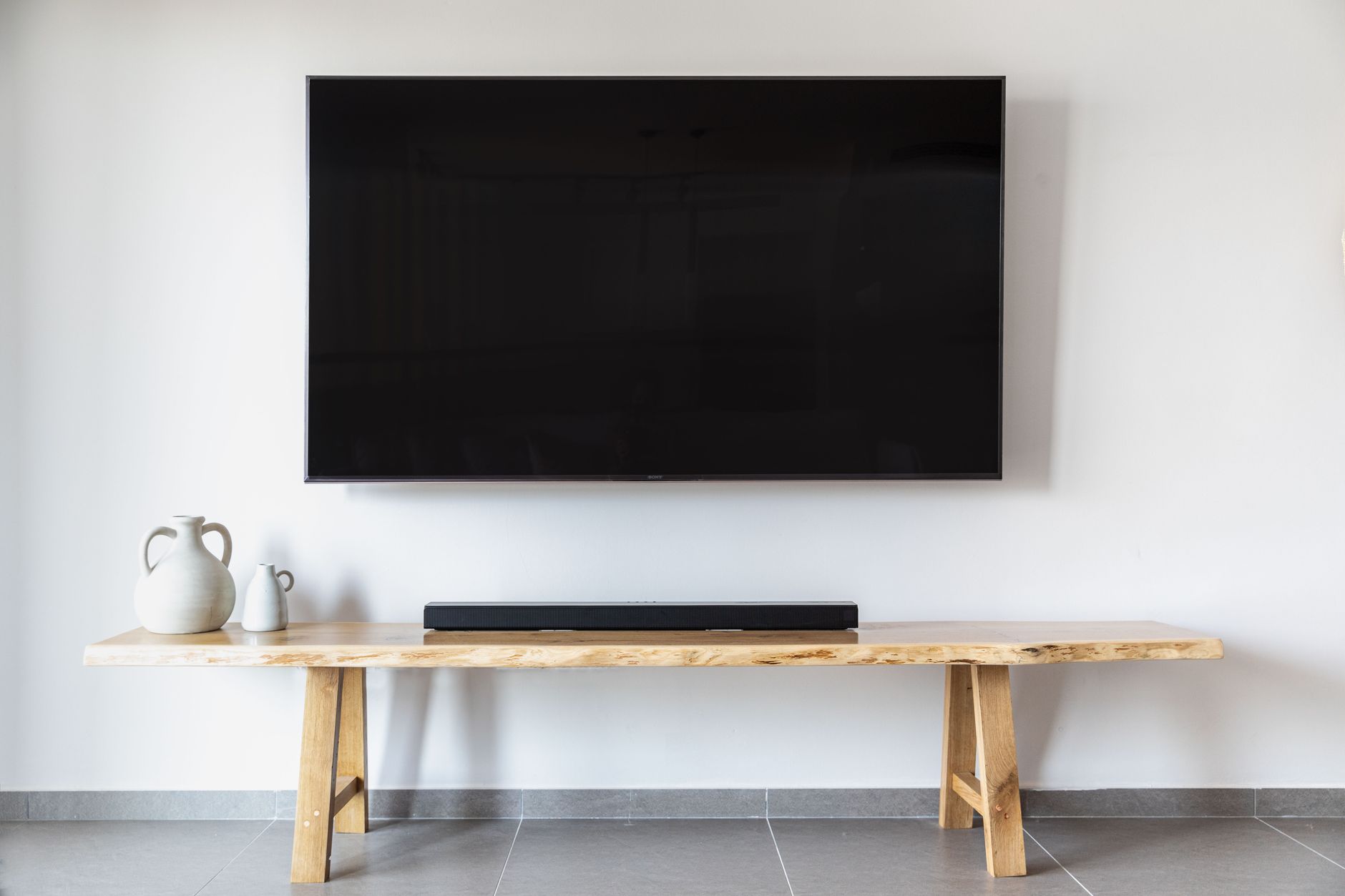
To connect a soundbar to your TV, use an HDMI ARC (Audio Return Channel) cable, an optical cable, an auxiliary (3.5mm) cable, or Bluetooth, depending on the ports available on both devices. HDMI ARC is the best option because it carries high-quality audio and lets you control the soundbar with your TV remote. Optical cables deliver excellent sound as well, though they do not support volume control from the TV remote in most cases. Analog or Bluetooth connections work when simpler setups are preferred or when neither HDMI nor optical ports are available. Check the ports on your TV and soundbar before choosing a cable.
HDMI ARC Connection
HDMI ARC is the most recommended method to connect a soundbar to a TV because it supports high-quality audio formats and allows two-way communication between the devices. You only need a single HDMI cable, and the soundbar can be controlled with the TV remote. Look for an HDMI port labeled “ARC” on your TV and soundbar. Plug one end of the cable into the TV’s ARC port and the other into the soundbar’s ARC port. Then, enable HDMI ARC in your TV’s audio settings.
Some newer TVs and soundbars also support eARC (enhanced Audio Return Channel), which handles higher bandwidth audio like Dolby Atmos. If your devices support eARC, use a high-speed HDMI cable for the best experience. Not all HDMI ports are ARC compatible, so double-check the labels on your TV.
Optical Cable Connection
If your TV does not have an HDMI ARC port, an optical cable (also called TOSLINK) is a reliable alternative. Optical cables transmit digital audio signals without compression, so you get clear sound. Connect one end of the optical cable to the TV’s optical audio output and the other to the soundbar’s optical input. Then, change the TV’s audio output setting to “Optical” or “Digital Audio Out.”
One limitation of optical connections is that they do not carry control signals, meaning you cannot adjust the soundbar volume with the TV remote. You will need to use the soundbar’s own remote or buttons. Additionally, optical cables cannot transmit high-resolution audio formats like Dolby Atmos, but they still deliver excellent sound for most content.
Auxiliary (3.5mm) or RCA Connection
An auxiliary or RCA connection is the simplest wired method, using analog audio cables. This option works when your TV has a headphone jack or RCA audio outputs (red and white ports). Connect one end of the 3.5mm cable to the TV’s headphone jack and the other to the soundbar’s AUX input. If using RCA, plug the red and white connectors into the corresponding ports on both devices. Then, select the correct input on the soundbar.
Analog connections carry stereo sound only, not surround sound formats. They are a good fallback if digital ports are unavailable, but the audio quality may be slightly lower than digital methods. Some TVs disable the internal speakers when a headphone jack is used, so you may need to adjust audio settings.
Bluetooth Connection
Bluetooth offers a wireless way to connect a soundbar to your TV, which can be convenient for reducing cable clutter. Put your soundbar into pairing mode, then on your TV, go to the Bluetooth settings and select the soundbar from the list of available devices. Once paired, audio from the TV plays through the soundbar wirelessly.
Bluetooth has some drawbacks. It can introduce audio lag, where the sound is slightly delayed behind the picture, which is noticeable during dialogue. Also, Bluetooth compresses audio, so sound quality may not match wired connections. For casual viewing, Bluetooth works well, but for movies or games, a wired connection is better to avoid sync issues.
Choosing the Right Method for Your Setup
The best method to connect your soundbar to your TV depends on the ports available and your priorities. If you want the best audio quality and easy remote control, use HDMI ARC. If your TV lacks ARC, optical is a strong second choice. For older TVs with only analog outputs, auxiliary or RCA cables work. Bluetooth is ideal for wireless convenience but may have lag. Check your TV and soundbar manuals to confirm which ports they have before buying a cable.
Most modern soundbars include multiple input options, so you can choose the one that fits your TV. If you are unsure, start with HDMI ARC because it simplifies control and delivers great sound.
How to Set Up Your Soundbar Connection
Once you have chosen a connection method, follow these steps to complete the setup:
- For HDMI ARC: Connect an HDMI cable to the ARC ports on both devices, then enable ARC in your TV’s audio settings.
- For optical: Plug the optical cable into the TV’s optical output and the soundbar’s optical input, then select “Optical” as the audio source on the TV.
- For auxiliary or RCA: Connect the analog cable to the appropriate ports on both devices, then choose the correct input on the soundbar.
- For Bluetooth: Put the soundbar in pairing mode, find it in your TV’s Bluetooth menu, and confirm the connection.
After connecting, test the audio by playing a video. If you do not hear sound, check that the TV’s audio output is set to the correct source (e.g., “External Speakers” or “Audio System”). While that article covers drill bits, the troubleshooting approach it outlines can help you systematically check connections and settings.
Related Guides
Frequently Asked Questions
Can I use a regular HDMI cable for ARC?
Yes, a standard HDMI cable works for ARC as long as it is properly shielded. However, for eARC or high-bandwidth audio formats, a high-speed HDMI cable with Ethernet is recommended to ensure full compatibility.
Why is my soundbar not producing sound after connecting?
Check that the TV’s audio output is set to the correct source, such as “External Speakers” or “Audio System.” Also, ensure the soundbar is powered on and set to the correct input. If using ARC, confirm that the HDMI cable is plugged into the ARC port and that the feature is enabled in the TV settings.
Does optical cable carry surround sound?
Optical cables can carry compressed 5.1 surround sound formats like Dolby Digital, but they cannot transmit uncompressed high-resolution formats like Dolby TrueHD or DTS-HD Master Audio. For full surround sound, HDMI ARC or eARC is preferable.
Can I connect a soundbar to a TV without HDMI or optical ports?
Yes, you can use an auxiliary cable, RCA cables, or Bluetooth. If your TV has a headphone jack, a 3.5mm to 3.5mm cable works. Some older TVs have RCA outputs, which require an RCA to 3.5mm adapter for the soundbar.
Connecting a soundbar to your TV is usually a simple process once you identify the right cable or wireless method for your devices. For more detailed information on choosing the best soundbar for your needs, check out our related posts in the Electronics category.